Git — The Mental Model
Git — The Mental Model
Most people learn Git backwards. They get a list of commands to memorise — git add, git commit, git push — and then spend months not quite understanding why things work or why things go wrong.
This post does it differently. It builds the mental model first. Once you understand what Git is actually doing, the commands stop being a checklist and start making sense on their own.
📌 Already use Git?
This post is a good refresh. You will likely find at least one thing you never had a clean mental picture of — especially around the staging area and the DAG.
What Git actually is
Git is a version control system. What that means in practice: Git takes snapshots of your files over time and lets you move between those snapshots freely.
It does not track a file’s current state. It tracks the full history of every state that file has ever been in — every time you told Git to record it.
Three things Git gives you:
- A complete history of every saved change
- The ability to undo anything, at any point
- The ability to work on multiple versions simultaneously without them interfering with each other
💡 Quick note on GitHub
Git and GitHub are not the same thing. Git is the tool — it runs on your machine. GitHub is a hosting platform — it stores your Git repositories in the cloud and adds collaboration features on top. You can use Git without GitHub. See the full breakdown in the companion post: Git, GitHub and VS Code — A Complete Beginner’s Guide (rakeshnarayan.com/articles/what-is-git-github-vscode/).
The four areas of Git
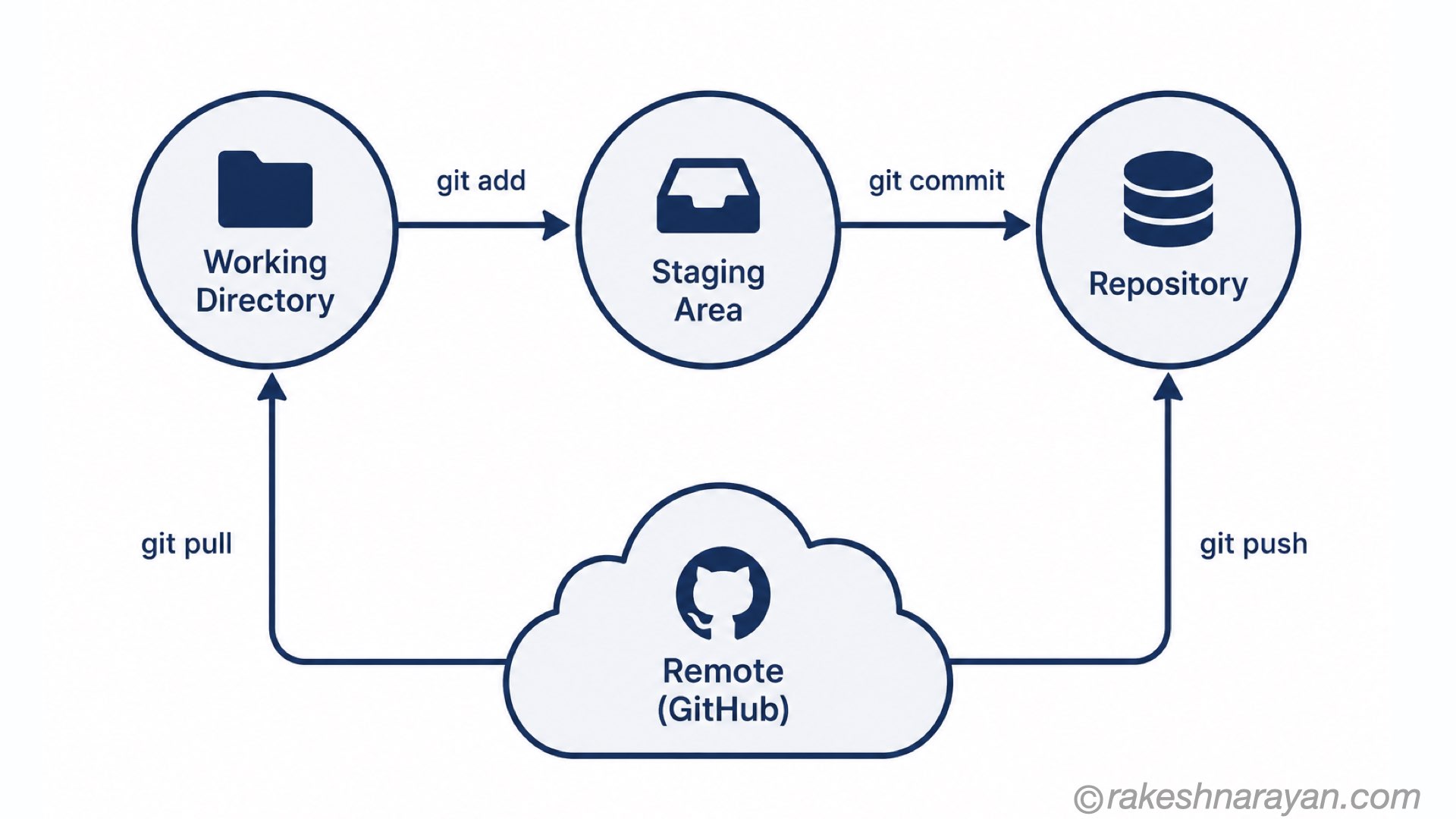
Before anything else, you need to know where your files live at any given moment. Git has four distinct areas, and understanding them removes most of the confusion people have with Git.
| Area | What it is | Where it lives |
|---|---|---|
| Working Directory | Your project folder — where you actually edit files | Your machine |
| Staging Area | A holding space — files you have chosen to include in the next commit | Your machine (tracked by Git) |
| Local Repository | Your full commit history stored locally by Git | Your machine (.git folder) |
| Remote Repository | A copy of your repository on a server — e.g. GitHub | The cloud |

Why the staging area exists
This is the part that confuses people most. Why not just go directly from edit to commit?
The staging area gives you control over exactly what goes into a commit. You might change ten files, but only want to commit five of them together as one logical change. The staging area is where you make that selection.
The commands that move files between areas:
| Command | What it does |
|---|---|
| git add | Moves a specific file from Working Directory to Staging Area |
| git add . | Moves all changed files to Staging Area |
| git commit -m “message” | Saves everything in Staging Area as a commit in the Local Repository |
| git push | Sends your local commits to the Remote Repository |
| git pull | Fetches and applies changes from the Remote to your Working Directory |
What a commit actually is
A commit is a snapshot. Not a diff, not a list of changes — a complete snapshot of every tracked file in your project at that moment.
Every commit has:
- A unique ID (a long hash like 3f4a9c2…)
- A timestamp
- A commit message (what you wrote)
- A reference to the previous commit (its parent)
That last point is important. Commits are linked. Each one points back to the one before it. This chain of commits is the full history of your project.

What HEAD is
HEAD is simply a pointer. It points to the commit you are currently sitting on — your current position in the history. When you make a new commit, HEAD moves forward to it automatically.
Think of HEAD as “you are here” on a map.
What branches actually are
A branch is not a copy of your codebase. That is the most common misconception.
A branch is just a label — a pointer to a specific commit.
When you create a branch, Git creates a new pointer at the commit you are currently on. As you make new commits on that branch, the pointer moves forward — independently of every other branch.
| Concept | What it actually means |
|---|---|
| main (or master) | The default branch — a pointer to the latest commit on the main line |
| feature branch | A new pointer, starting from wherever you were when you created it |
| branch switching | Moving HEAD to point to a different branch pointer |
| merging | Bringing the commits from one branch into another |

Why this matters
Because branches are just labels, creating and deleting them is instant and cheap. You are not duplicating files. You are just moving a pointer.
This is why professional teams create a new branch for every feature, every bug fix, and every experiment. There is no cost to it. The risk of breaking the main codebase is zero — because you are working on a separate pointer that does not affect main until you explicitly merge it.
The DAG — the structure behind it all
Git’s history is not a straight line. It is a Directed Acyclic Graph — DAG for short.
Directed means each commit points to its parent (one direction only). Acyclic means you can never loop back — history only moves forward. Graph means commits can have multiple parents (a merge commit) or multiple children (branching).
You do not need to think about the DAG constantly. But knowing it exists answers a lot of “why” questions:
- Why can two branches have completely different histories? Because they follow different paths in the graph.
- Why does a merge commit look different? Because it has two parents — one from each branch.
- Why can Git tell you exactly what changed between any two points? Because it can walk the graph from one commit to another.
The mental model — all together
Put it all together and this is what Git looks like:
| Concept | One-line mental model |
|---|---|
| Working Directory | Where you work — Git watches but does not record yet |
| Staging Area | Your selection of what to include in the next snapshot |
| Commit | A permanent, linked snapshot with a unique ID |
| HEAD | A pointer to where you currently are in the history |
| Branch | A label (pointer) to a specific commit — not a copy of files |
| Merge | Combining the history of two branches into one |
| Remote | Another copy of the same repository, usually on GitHub |
| Push / Pull | Syncing commits between your local repository and the remote |
Common questions that the mental model answers
Why did my file disappear when I switched branches?
Because your working directory reflects whichever commit HEAD is pointing to. If that file was not committed on the branch you switched to, it will not be there. This is expected — not a bug.
Why is git status showing files I did not touch?
Git compares your working directory against the last commit on your current branch. If files differ from that snapshot, Git flags them. This can happen after switching branches or pulling changes.
What actually happens when I delete a branch?
You are deleting the label (pointer) — not the commits. The commits still exist in Git’s history until Git’s garbage collection removes unreferenced commits. This is why you can recover a deleted branch if you act quickly.
What is the difference between merge and rebase?
Both bring changes from one branch into another. Merge creates a new merge commit with two parents — it preserves the exact history of both branches. Rebase replays your commits on top of another branch, creating a cleaner linear history. Merge is safer for shared branches. Rebase is common for cleaning up local work before merging.
Quick reference — the core commands
| Command | What it does |
|---|---|
| git init | Start tracking a folder with Git |
| git clone | Copy a remote repository to your machine |
| git status | See what has changed since the last commit |
| git add | Move changes to the Staging Area |
| git commit -m “message” | Save the staged snapshot to the Local Repository |
| git log | View the commit history |
| git branch | Create a new branch |
| git checkout | Switch to a branch (move HEAD) |
| git merge | Merge another branch into your current one |
| git push | Send local commits to the Remote |
| git pull | Fetch and apply remote changes locally |
| git diff | See what has changed but not yet been staged |
For a complete command reference with scenarios and setup instructions, see the companion post: Git, GitHub and VS Code — A Complete Beginner’s Guide.
The one thing to take away
Git stores history as a chain of snapshots (commits), organised into a graph. Branches are just labels on that graph. The staging area is your control over what goes into each snapshot.
Once that model is clear in your head, Git stops feeling like a black box. The commands become obvious — they are just operations on a graph.
🔗 Continue reading
If you want the practical side — setup, commands, real workflows, and branching in action — the full hands-on guide is here: rakeshnarayan.com/articles/what-is-git-github-vscode/