Git, GitHub and VS Code — A Complete Beginner's Guide to Version Control
Git, GitHub & VS Code
A practical guide — from your first commit to confident collaboration.
Every developer has been there. You make a small change to your code. Something breaks. You have no idea what you changed or when. You wish you could just go back to the version that worked.
That is exactly the problem Git was built to solve. And once you add GitHub and VS Code to the mix, you have one of the most powerful and widely used development setups in the world.
This guide explains all three, shows you how they work together, and gives you everything you need to get started.
What is Git?
Git is a version control system. In plain English — it tracks every change you make to your code, stores a full history, and lets you undo anything.
Think of it like a very smart save button. Not just one save — an infinite timeline of saves, each with a label, a timestamp, and a note explaining what changed. You can jump back to any point in that timeline at any time.
Why Git Matters
- You can experiment freely — break things, then roll back with no damage
- You can work on multiple features simultaneously using branches
- You can see exactly what changed, when, and who changed it
- You can merge your work with a colleague’s without overwriting each other
Created by: Linus Torvalds — the same person who built the Linux kernel. He built Git in 2005 because no existing tool was fast or flexible enough for the scale he needed.
What is GitHub?
Git lives on your laptop. GitHub lives in the cloud.
GitHub is a platform where you can host your Git repositories online — so your code is backed up, accessible from anywhere, and shareable with your team. It also adds a full layer of collaboration tools on top of Git.
| Feature | What It Means for You |
|---|---|
| Remote repositories | Your code lives in the cloud — safe, accessible, shareable |
| Pull requests | A structured way to propose and review changes before merging |
| Issues and Projects | Built-in task tracking — a lightweight Jira inside your repo |
| GitHub Actions | Automate testing, building, and deploying on every push |
| Code review | Comment on specific lines, suggest changes, approve or reject |
| Forks | Copy any public repo to your account and build on top of it |
GitHub vs GitLab vs Bitbucket: All three host Git repositories. GitHub has the largest open-source community. GitLab has stronger built-in CI/CD. Bitbucket integrates tightly with Atlassian tools like Jira. GitHub is the default choice for most developers.
What is Visual Studio Code?
VS Code is a free, lightweight code editor built by Microsoft. It is fast, flexible, and extensible — and has Git integration baked right in. You can write code in any language, and it comes with a built-in terminal and debugger.
It is currently the most popular code editor in the world. It gets out of your way and lets you focus on writing code.
- Free and open source
- Built-in Git support — no plugins required
- Thousands of extensions for every language and framework
- Runs on Windows, macOS, and Linux
- Lightweight enough to open instantly, powerful enough for full projects
How Git, GitHub and VS Code Work Together
Here is the mental model that makes everything click:
| Tool | Role | Lives Where |
|---|---|---|
| Git | Tracks changes and manages version history | Your local machine |
| GitHub | Hosts your repository and enables collaboration | The cloud |
| VS Code | Where you write code and run Git commands visually | Your local machine |
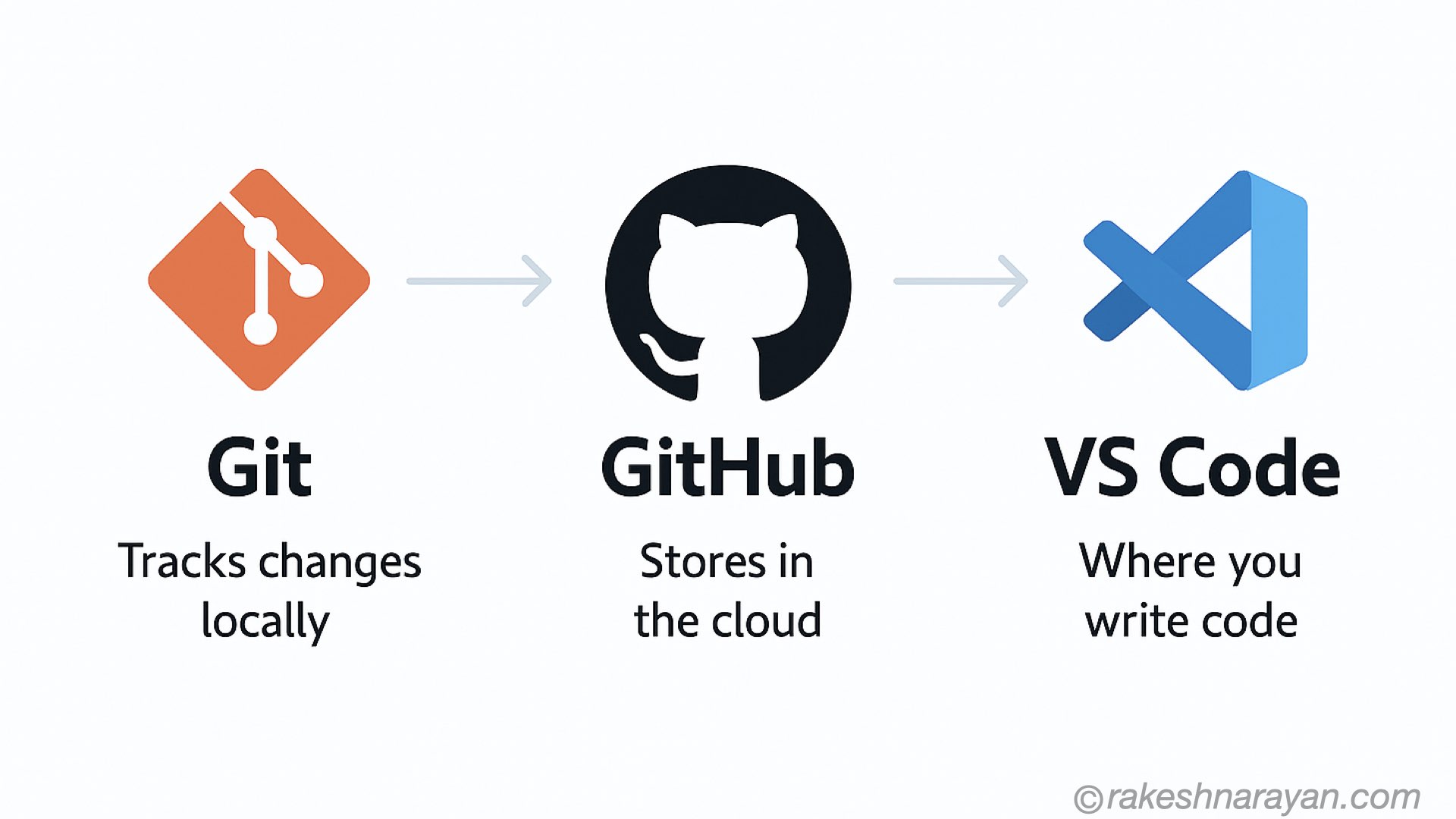
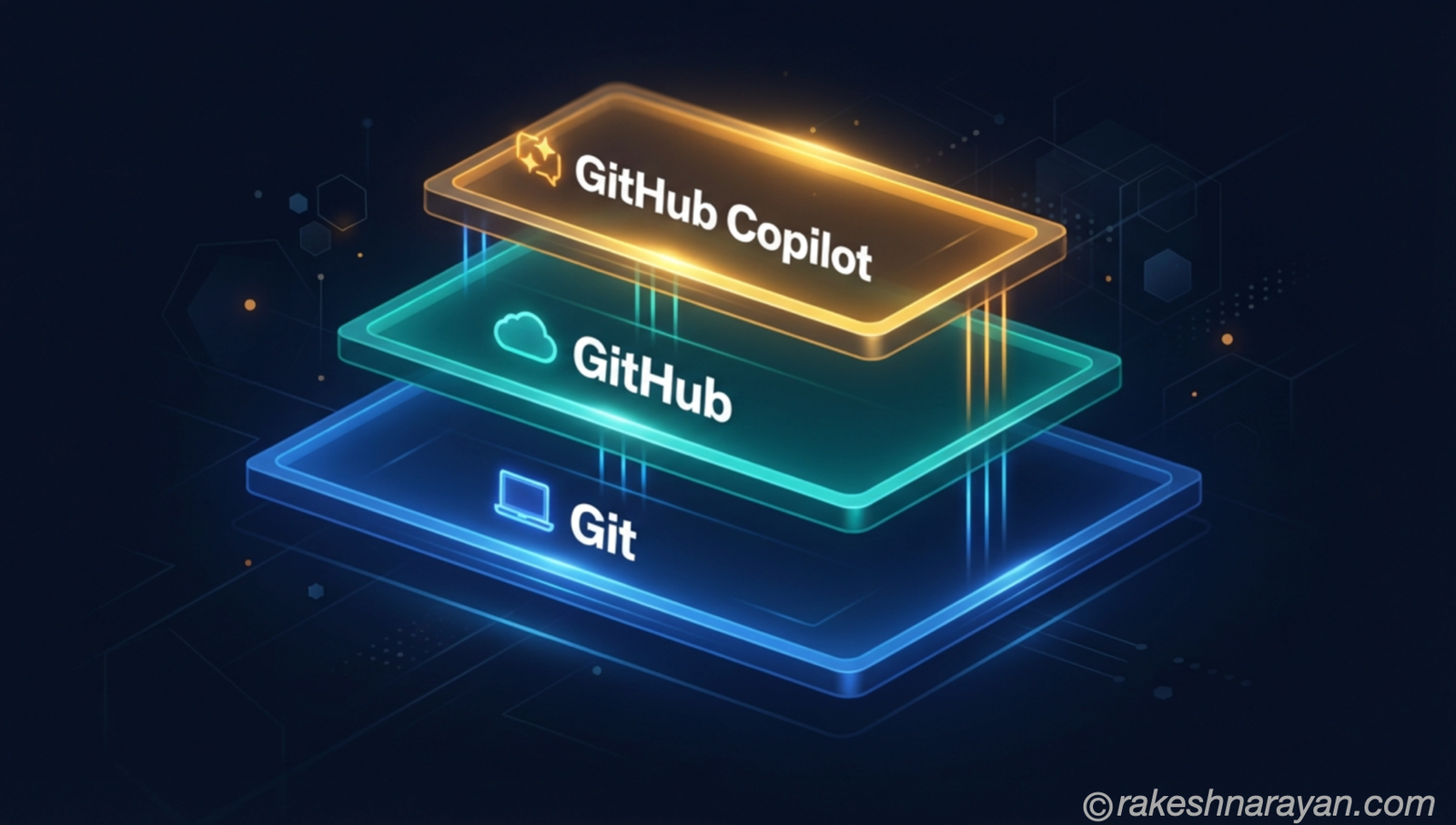
You write code in VS Code. Git tracks the changes locally. GitHub stores them in the cloud and lets your team collaborate. The three tools form a complete, modern development workflow.
Setting Up — Step by Step
Here is everything you need to do to get from zero to a working Git and GitHub setup in VS Code.
| 1 | Install Git Download and install Git from git-scm.com. This is the engine. Everything else depends on it. |
|---|
| 2 | Install VS Code Download from code.visualstudio.com. Free, fast, and already knows about Git the moment you open it. |
|---|
| 3 | Create a GitHub Account Sign up at github.com. Free for public and private repos. This is where your code lives in the cloud. |
|---|
| 4 | Install the GitHub Extension in VS Code Press Ctrl+Shift+X (Windows) or Cmd+Shift+X (Mac) in VS Code. Search GitHub and install the GitHub Pull Requests extension. |
|---|
| 5 | Sign Into GitHub from VS Code Open the Source Control panel with Ctrl+Shift+G, click Sign In, and authorise VS Code to access your GitHub account. |
|---|
| 6 | Create or Clone a Repository Now choose your path — start fresh (Scenario 1) or work with an existing repo (Scenario 2). |
|---|
Scenario 1 — Starting a New Project
Create a New Repository on GitHub
- Go to github.com and log in
- Click the + icon top right and select New repository
- Add a name, description, choose public or private, then click Create repository
- GitHub gives you a URL — copy it, you will need it next
Set Up Locally in VS Code
Open VS Code, create a new project folder, open the terminal (Ctrl+`) and run:
git init
git remote add origin https://github.com/YOUR-USERNAME/YOUR-REPO.git
git remote -v
The first command initialises a Git repo in your folder. The second links it to GitHub. The third confirms the link was created successfully.
Make Your First Commit and Push
git add .
git commit -m “initial commit”
git push -u origin main
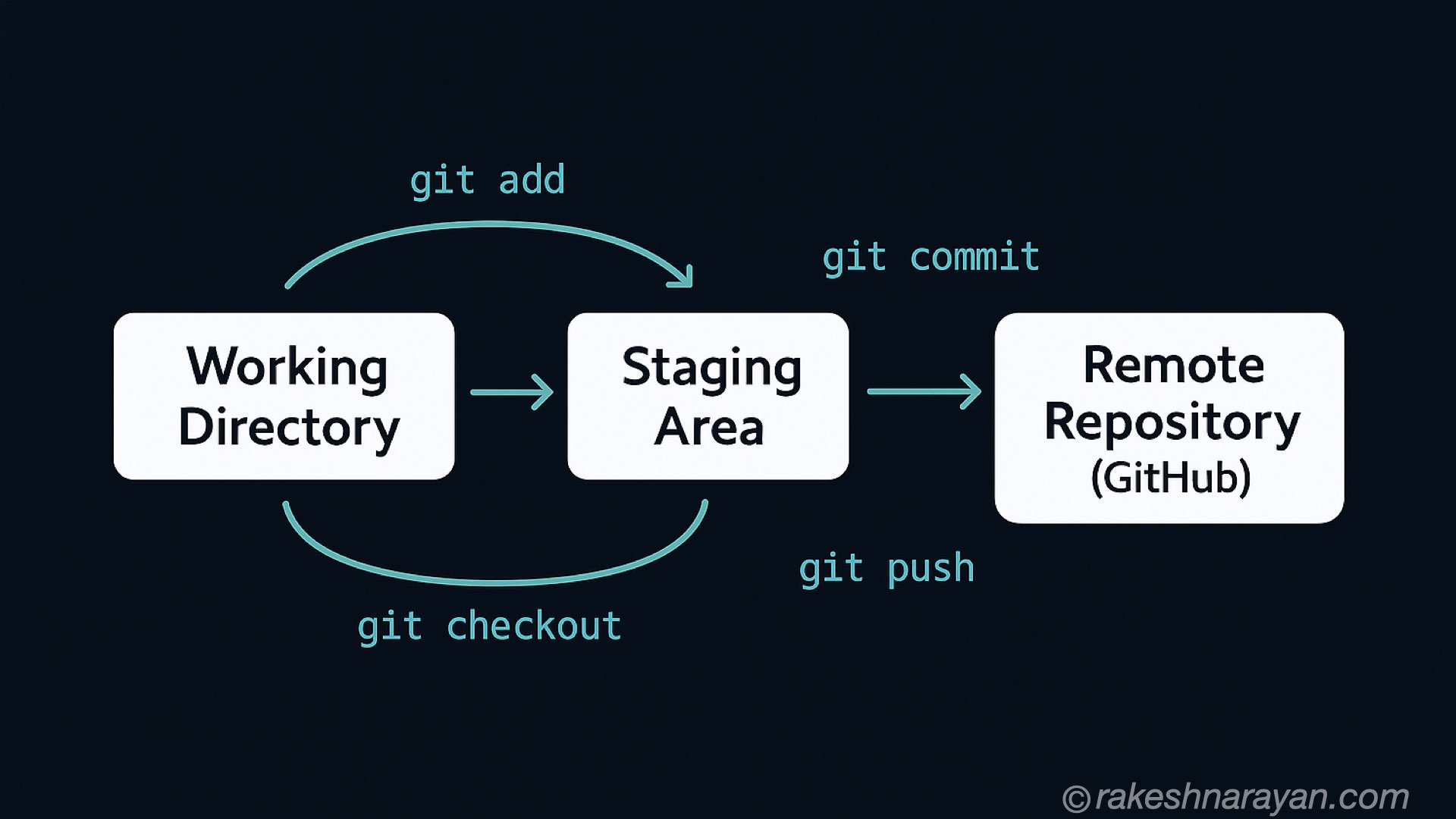
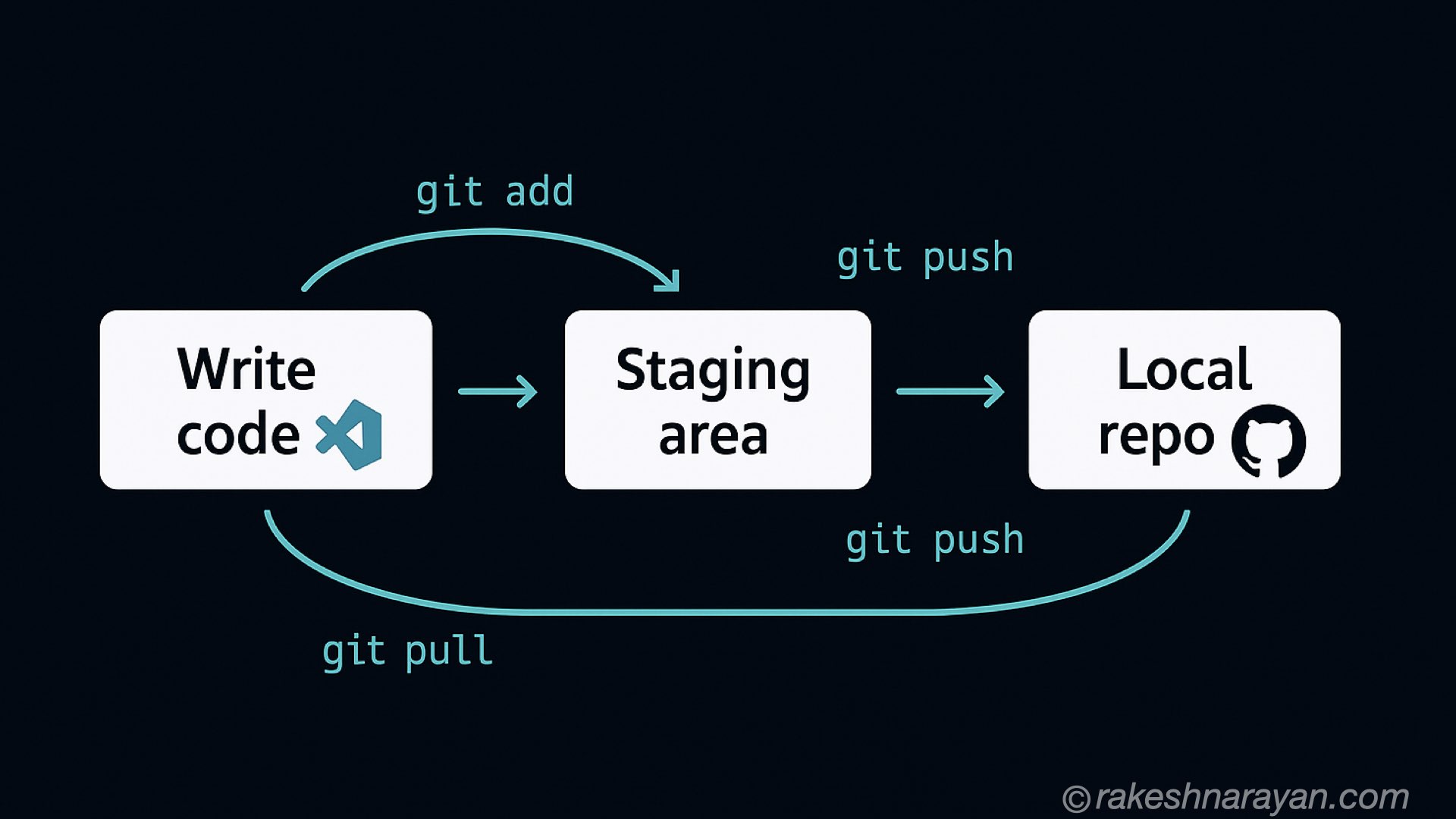
Your code is now on GitHub. From here, git push sends your commits to GitHub and git pull brings down changes from GitHub.
Scenario 2 — Working with an Existing Repository
Clone the Repository
Go to the GitHub repository, click the green Code button, and copy the URL. Then in VS Code terminal:
This downloads the entire repository — all files and full history — to your machine.
Open and Start Working
- In VS Code: File → Open Folder → select the cloned folder
- Make your changes, then stage, commit and push as normal
git add .
git commit -m “your message here”
git push
Branches — Work Without Breaking Things
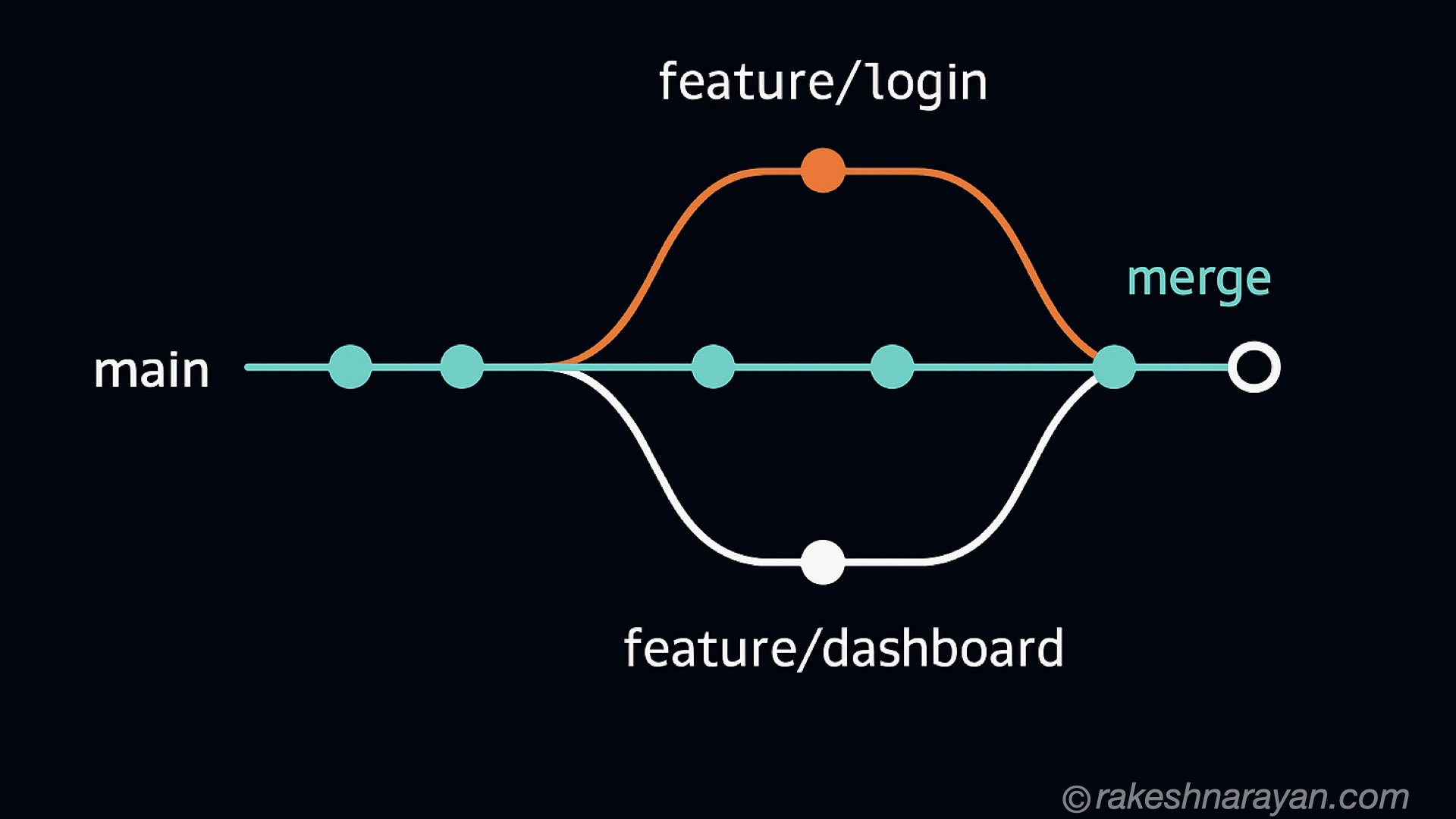
A branch is your own private copy of the codebase. You experiment freely, and when the work is ready, you merge it back into main.
This is how professional teams work. Nobody pushes directly to main. Everyone works on a branch, raises a pull request, gets it reviewed, then merges.
git checkout -b feature/my-new-feature # create and switch to a new branch
git add .
git commit -m “add new feature”
git push origin feature/my-new-feature # push branch to GitHub
On GitHub, you then open a Pull Request — a formal proposal to merge your branch into main. Your team reviews it, comments on specific lines, approves it, and it gets merged.
Important Git Commands — Quick Reference
| Command | What It Does |
|---|---|
| git init | Initialise a new Git repository in the current folder |
| git clone | Download a repository from GitHub to your local machine |
| git status | Show what has changed — tracked, untracked, and staged files |
| git add . | Stage all changes for the next commit |
| git add | Stage a specific file only |
| git commit -m “message” | Save staged changes with a description |
| git push | Send your commits to GitHub |
| git pull | Fetch and merge the latest changes from GitHub |
| git branch | List all branches — current branch is highlighted |
| git checkout -b | Create a new branch and switch to it |
| git checkout | Switch to an existing branch |
| git merge | Merge a branch into the current branch |
| git log | View the full commit history |
| git diff | Show changes not yet staged |
| git diff —staged | Show staged changes not yet committed |
| git stash | Temporarily save uncommitted changes |
| git stash pop | Restore the most recently stashed changes |
| git reset HEAD~1 | Undo the last commit — keeps your changes intact |
| git reset —hard HEAD | Discard all local changes and reset to last commit |
| git remote -v | Show all remote connections for this repository |
| git fetch | Download changes from GitHub without merging |
| git rebase | Reapply commits on top of another branch for clean history |
| git cherry-pick | Apply a specific commit from another branch |
| git tag | Mark a specific commit — used for release versions |
| git branch -D | Delete a local branch |
| git push origin —delete | Delete a branch on GitHub |
The .gitignore File — What Not to Track
Not everything in your project should go to GitHub. API keys, passwords, build outputs, and dependency folders should all be excluded.
Create a file called .gitignore in your project root and add patterns for what to ignore:
node_modules/
.env
*.log
dist/
.DS_Store
Warning: Never commit API keys, passwords, or tokens to GitHub — even in a private repository. Use environment variables and .gitignore to keep them out of version control entirely.
Key Concepts — Quick Reference
| Term | What It Actually Means |
|---|---|
| Repository (repo) | The folder Git tracks — all files and full change history |
| Commit | A saved snapshot of your project at a specific point in time |
| Branch | A parallel version of your code for isolated feature work |
| Merge | Combining changes from one branch into another |
| Pull Request (PR) | A proposal to merge a branch — reviewed and approved before merging |
| Clone | Downloading a remote repository to your local machine |
| Fork | Copying someone else’s repository to your own GitHub account |
| Staging area | The holding area between your edits and your next commit |
| Origin | The default name Git gives to your remote repository on GitHub |
| HEAD | A pointer to your current position in the commit history |
| Merge conflict | When two branches change the same line — you decide which to keep |
| Stash | A temporary shelf for uncommitted changes not ready to commit |
| Rebase | Replaying commits on top of another branch for cleaner history |
| Tag | A label on a specific commit — used to mark release versions |
| .gitignore | A file telling Git which files and folders to never track |
FAQ — Common Questions Answered
What is the difference between Git and GitHub?
Git is the version control tool that runs on your machine. GitHub is a cloud platform that hosts your Git repositories and adds collaboration features. You can use Git without GitHub — but GitHub requires Git.
Do I need to use the terminal, or can I do everything in VS Code?
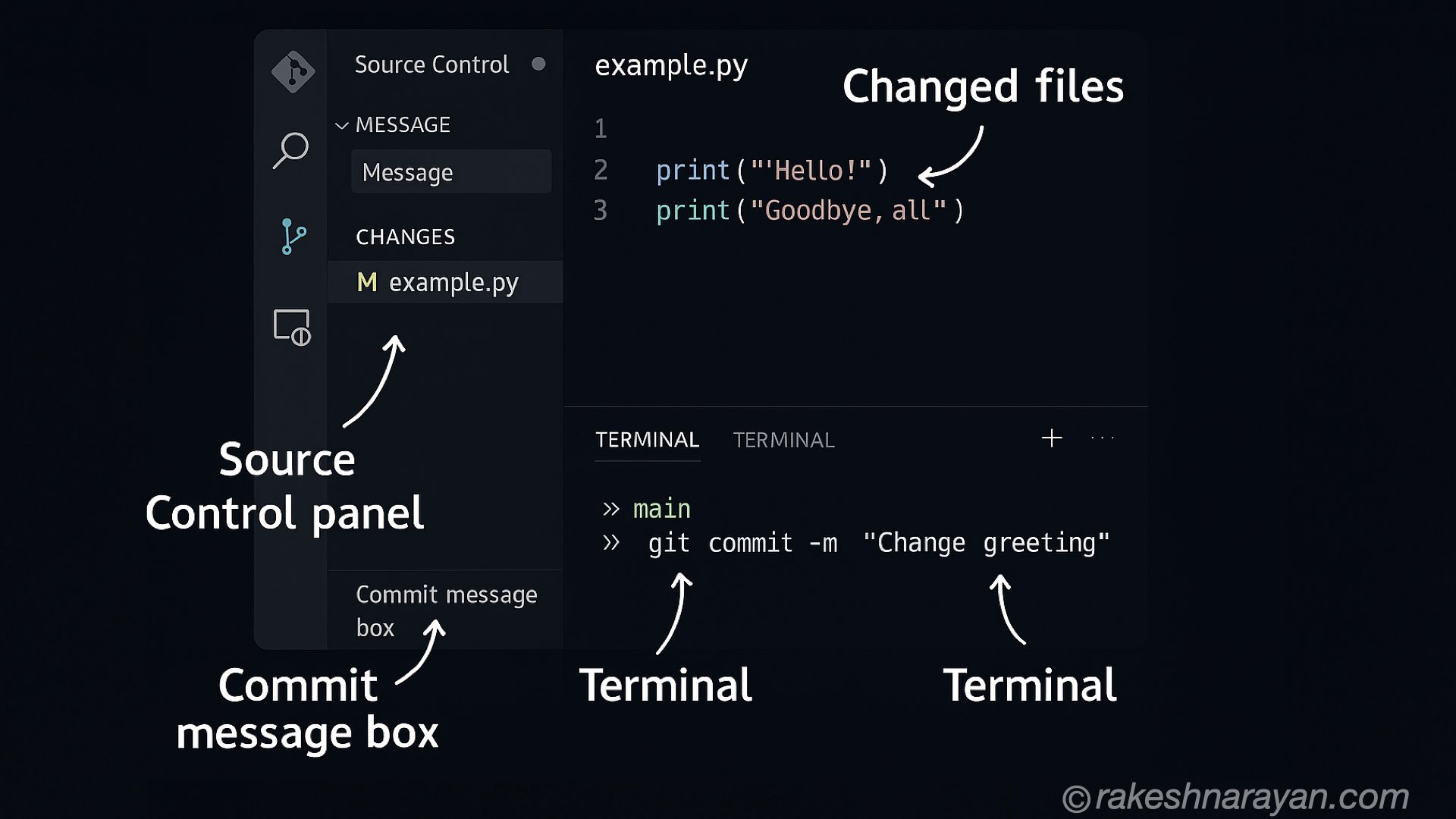
VS Code handles the most common tasks visually — staging, committing, pushing, pulling, and switching branches. For advanced operations like rebasing or cherry-picking, the terminal gives you more control. Most developers use a mix of both.
What is a pull request and why does it matter?
A pull request is a proposal to merge your branch into another — usually main. It lets teammates review your code, leave comments on specific lines, request changes, and approve the merge. It is the core collaboration mechanism in any team using GitHub.
What is the difference between git pull and git fetch?
git fetch downloads changes from GitHub but does not apply them to your working branch. git pull does both — it fetches and then merges. Use fetch when you want to see what changed before deciding to merge.
How do I fix a merge conflict?
VS Code shows merge conflicts visually with Accept Current Change and Accept Incoming Change buttons. You choose which version to keep, save the file, then stage and commit the resolved file. The conflict is resolved.
What is the difference between GitHub, GitLab and Bitbucket?
All three host Git repositories. GitHub has the largest open-source community. GitLab has stronger built-in CI/CD pipelines. Bitbucket integrates tightly with Atlassian tools like Jira. GitHub is the default for most developers.
How do I undo a commit I already pushed to GitHub?
Use git revert
What should I write in commit messages?
Be specific and use the imperative tense: Add user login validation — not Added some stuff. A good commit message tells someone what changed and why. For complex changes, add a short body below the subject line explaining the reasoning.
The 60-Second Summary
- Git tracks every change to your code and lets you undo anything
- GitHub hosts your repositories in the cloud and enables team collaboration
- VS Code is the editor — Git and GitHub integration built right in
- The core workflow: write code, git add, git commit, git push — repeat
- Branches let you work on features without touching the main codebase
- Pull requests are how teams review and merge code safely
- The .gitignore file keeps secrets and unnecessary files out of your repo
🔗 Continue reading
Once git add, git commit and git push feel comfortable, here’s what GitHub itself adds on top — Issues, Actions, Pages and built-in security scanning: GitHub for SAP Developers — Actions, Issues and Pages Explained
If the terminal itself still feels unfamiliar rather than Git specifically, Linux Command Line — The Mental Model for Developers covers the shell fundamentals this whole workflow assumes.
Did you enjoy this article?
Let me know — it takes one click.
0 Comments
Leave a Comment
Looks like this one held your attention — I'd really appreciate a quick comment below.
Your comment has been submitted and will appear after review.