Linux Command Line — The Mental Model for Developers
Most developers learn the terminal the same way. Something breaks on a server, a colleague pastes a command into Slack, and you run it without really understanding what it does. It works. You move on. The next time something breaks, you do the same thing again.
The problem is not the commands. The problem is that without a mental model, every terminal session feels like guesswork. You know the incantations but not the logic behind them.
This post does what the command cheatsheets do not — it explains how Linux thinks. Once the model clicks, the commands stop being magic and start making sense on their own.
🔗 Related Reading
Git — The Mental Model — the same mental-model approach applied to version control. Read this next.
Docker and Containers — The Why — Docker uses the Linux filesystem and process model directly. This post makes that click.
Terminal, shell, command line — three things people conflate
Before anything else, the terminology needs to be right. These three terms get used interchangeably, but they are different things.
The terminal is the application — the window you open. On macOS it is Terminal or iTerm. On Linux it is GNOME Terminal, Konsole or similar. It is just a program that displays text input and output.
The shell is the program running inside the terminal. It takes what you type, interprets it, and talks to the operating system. The most common shells are Bash (default on most Linux distros) and Zsh (default on macOS since 2019). For everything in this post, bash and zsh behave identically.
The command line is the interface type itself — text-based input. The terminal hosts the shell, which gives you a command line.
Why does this matter? Because when your shell configuration breaks, you fix it in a different place than when your terminal application breaks. Knowing which layer has the problem saves time.
📌 Key Takeaway
Terminal = the window. Shell = the program inside it. Command line = the style of interface. You configure them separately.
The filesystem — how Linux thinks about storage
This is the part most tutorials rush past, and it is the part that causes the most confusion.
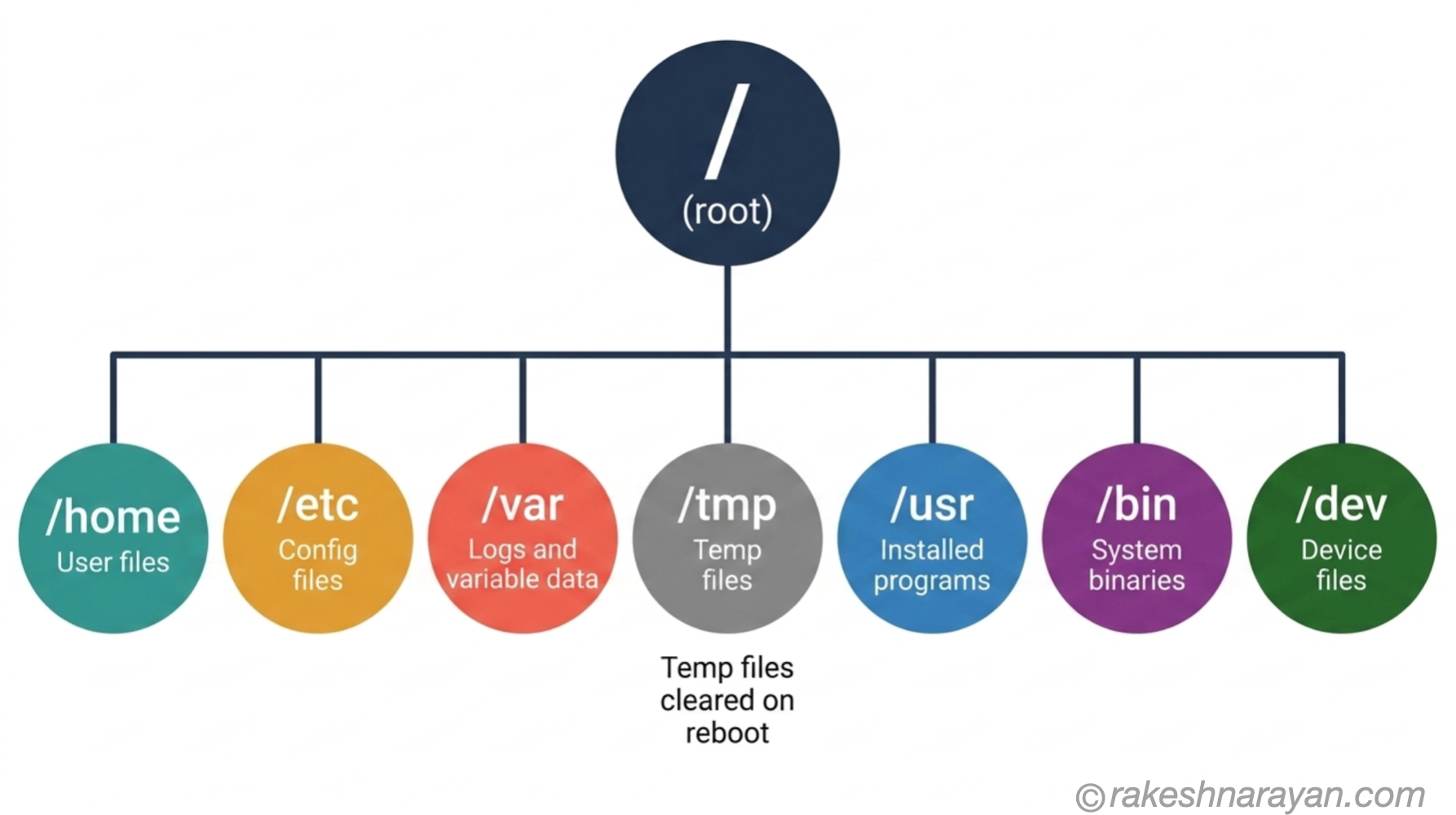
Linux has one filesystem tree. Everything — every file, every device, every directory — hangs off a single root, represented by a forward slash: /. There are no drive letters like C:\ or D:. There is only /.
The Filesystem Hierarchy Standard (FHS) defines what lives where. You do not need to memorise all of it. You need to know the directories you will actually encounter.
| Directory | What lives there | When you encounter it |
|---|---|---|
| / | The root. Everything starts here. | Rarely — you navigate from here but do not store things directly in / |
| /home | Your user’s files. /home/rakesh is the home directory for user rakesh. | Every time you work with your own files. ~ is a shortcut to your home dir. |
| /etc | System-wide configuration files. nginx.conf, ssh/sshd_config, hosts. | When you configure services or troubleshoot a broken config. |
| /var | Variable data — things that change at runtime. Logs live in /var/log. | When you are reading logs to debug a problem. |
| /tmp | Temporary files. Cleared on reboot. Any process can write here. | When you need scratch space. Do not store anything important here. |
| /usr | User programs and libraries. Most installed software lands in /usr/bin or /usr/local/bin. | When you install or look for a program’s binary. |
| /bin | Essential system binaries. ls, cp, cat — commands needed for the system to function. | You usually do not touch this directly. It just needs to be on your PATH. |
One more principle that shapes everything: in Linux, almost everything is a file. Devices are represented as files in /dev. Running processes are exposed as files in /proc. Sockets and pipes are files. This means you can interact with hardware and processes using the same file-reading tools you use for text files.
Navigation — moving around the filesystem
Once the tree structure makes sense, navigation commands become obvious. You are always somewhere in the tree, and these commands let you see where you are and move around.
| Command | What it does | Example |
|---|---|---|
| pwd | Print working directory — shows your current location in the tree. | pwd → /home/rakesh/projects |
| ls | List contents of a directory. Add -la for full detail including hidden files. | ls -la /etc |
| cd | Change directory. cd .. moves up one level. cd ~ goes home. cd - returns to the previous dir. | cd /var/log |
| mkdir | Make a new directory. Add -p to create nested directories in one command. | mkdir -p projects/api/src |
| cp | Copy a file or directory. Add -r to copy directories recursively. | cp config.yaml config.yaml.bak |
| mv | Move or rename. Moving within the same filesystem is instant — it just updates a pointer. | mv old-name.txt new-name.txt |
| rm | Remove files. rm -rf removes directories recursively. There is no trash — this is permanent. | rm -rf /tmp/build-artifacts |
Two path styles exist: absolute paths start from / and describe the full location (/home/rakesh/projects). Relative paths start from where you are right now (../config or ./scripts/start.sh). The dot shortcuts matter: . means the current directory, .. means one level up, ~ means your home directory.
⚠️ Warning
rm -rf has no confirmation and no undo. Running rm -rf / on a server has destroyed production environments. Always double-check what you are removing before pressing enter.
Reading files — what you actually need
Most of the time at the command line, you are reading files — configs, logs, code output. A small set of commands covers almost all of it.
| Command | What it does | When to use it |
|---|---|---|
| cat | Print a file’s contents to the screen in one go. | Short files, quick checks. Not useful for logs — use less. |
| less | Page through a file — scroll with arrow keys, search with /, quit with q. | Any file longer than a screen. The right tool for reading large logs. |
| head | Print the first N lines (default 10). head -n 20 file.log. | Checking what a file starts with without loading all of it. |
| tail | Print the last N lines. tail -f follows a live file as it grows. | tail -f /var/log/nginx/access.log is the one you reach for first in production. |
| nano | A simple text editor that runs in the terminal. Ctrl+O to save, Ctrl+X to exit. | Quick edits to config files on a server. Not for writing code — use your IDE for that. |
💡 Practical Tip
tail -f is the most useful command on this list for day-to-day work. Attach it to any log file and you get a live stream of what the application is doing. Combine it with grep to filter for errors only: tail -f app.log | grep ERROR
Pipes and searching — where Linux philosophy becomes a superpower
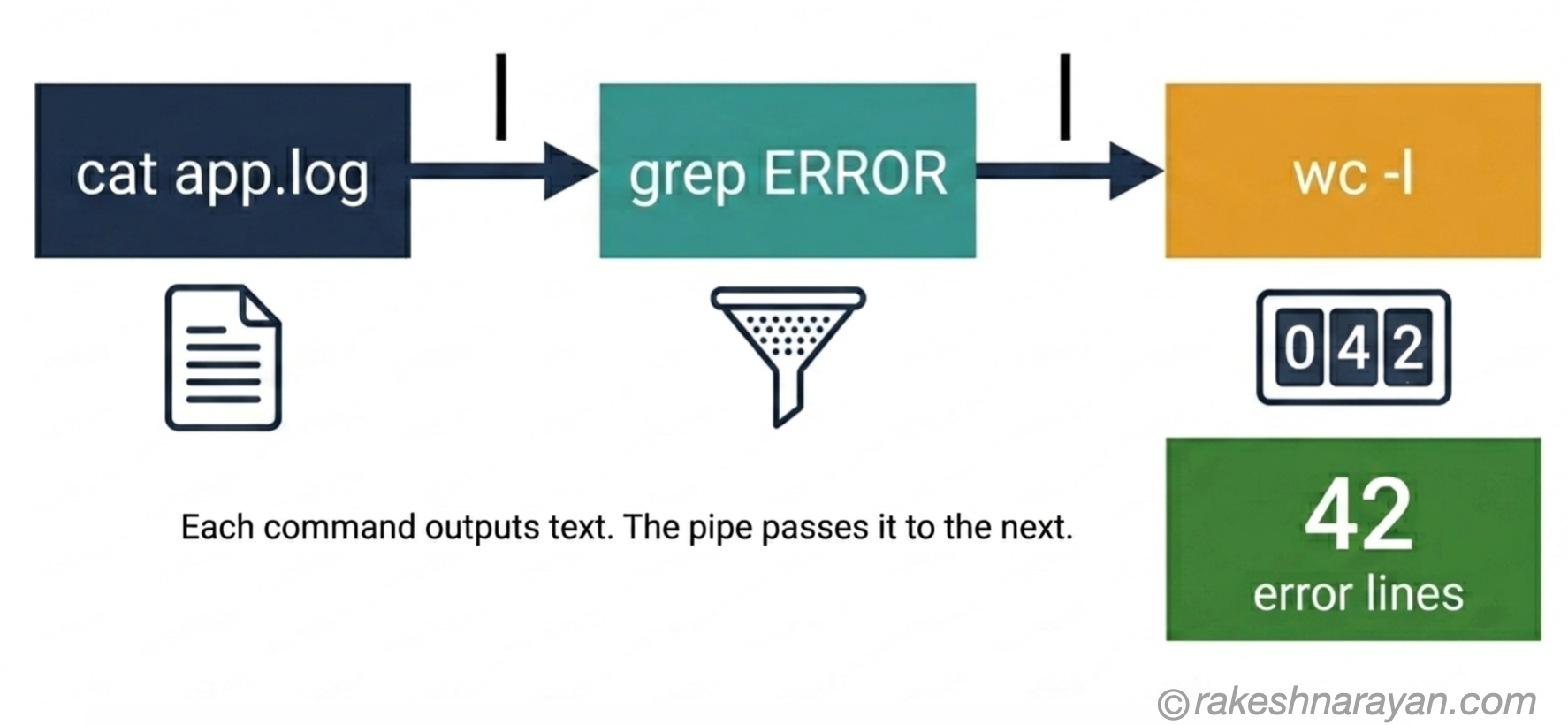
Here is the design principle behind the Linux command line: each tool does one thing well and produces text output. The pipe operator | connects tools together, feeding the output of one command as the input to the next.
This sounds modest. The practical implication is significant: you can build powerful data pipelines by chaining simple commands, without writing a single line of code.
📌 Key Takeaway
The pipe | takes the output of the command on the left and feeds it as input to the command on the right. It is the single most useful concept in the Linux command line.
grep — search inside files
grep searches for a pattern inside a file or stream and prints matching lines. It is the fastest way to find what you need in a large log.
grep ‘ERROR’ /var/log/app.log # find all lines containing ERROR
grep -i ‘timeout’ /var/log/app.log # case-insensitive search
grep -n ‘NullPointerException’ app.log # show line numbers
grep -r ‘API_KEY’ ./config/ # search recursively in a directory
find — locate files by name or type
find searches the filesystem for files matching criteria. Unlike grep (which searches inside files), find searches for the files themselves.
find . -name ‘*.log’ # find all .log files from here
find /etc -name ‘nginx.conf’ # find nginx config
find . -type f -mtime -1 # files modified in the last day
Combining with pipes
This is where it comes together. You can chain grep, find, sort, wc and any other text tool to answer specific questions without writing a script.
cat /var/log/app.log | grep ‘ERROR’ | wc -l # count error lines
ls -la /var/log | grep ‘.log’ | sort -k5 -n # list logs sorted by size
ps aux | grep nginx # is nginx running?
Permissions — why access errors happen
Every file and directory in Linux has permissions attached to it. When you see permission denied, the permissions model is the reason. Understanding it stops you from blindly running sudo on everything — which is how permissions problems get made worse.
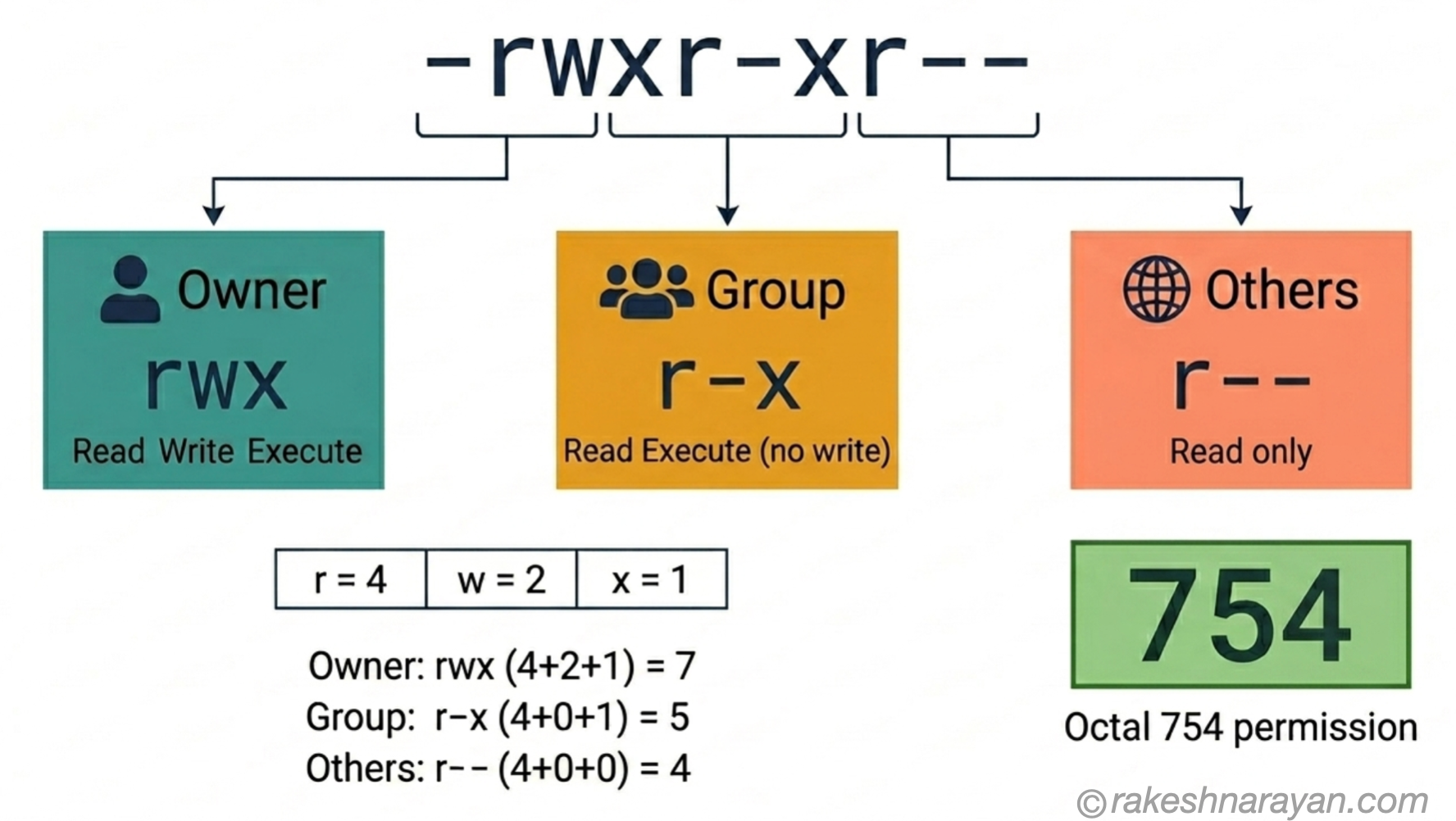
Permissions are assigned to three groups: the owner (the user who created the file), the group (a named group of users), and others (everyone else). Each group gets three permission bits: r (read), w (write), x (execute).
When you run ls -la, you see the permission string in the first column:
-rwxr-xr— 1 rakesh developers 4096 Jun 7 script.sh
Breaking that string down: the first character is the file type (- for file, d for directory, l for symlink). Then three characters each for owner, group, others.
In the example above: the owner can read, write and execute (rwx). The group can read and execute but not write (r-x). Others can only read (r—).
| Permission bit | Octal value | On a file | On a directory |
|---|---|---|---|
| r (read) | 4 | View the file’s contents | List the directory’s contents (ls) |
| w (write) | 2 | Modify the file | Create or delete files inside the directory |
| x (execute) | 1 | Run the file as a program | Enter the directory (cd into it) |
chmod and common values
chmod changes permissions. You can use symbolic notation — chmod u+x script.sh adds execute for the owner — or octal notation like chmod 755 script.sh.
The octal values are additive: r=4, w=2, x=1. So 7 = rwx, 5 = r-x, 4 = r—. Three digits cover owner, group and others in that order.
| chmod value | What it means | Use it for |
|---|---|---|
| 755 | Owner: rwx. Group: r-x. Others: r-x. | Executable scripts, directories you want others to enter but not write to. |
| 644 | Owner: rw-. Group: r—. Others: r—. | Regular files — readable by all, writable only by the owner. |
| 600 | Owner: rw-. Group: ---. Others: ---. | Private files — SSH keys, credentials. No access for anyone else. |
| 777 | Everyone: rwx. | Avoid this. It means anyone can read, modify and execute the file. Almost never the right choice. |
⚠️ Warning
chmod 777 is the most common permissions mistake. It feels like a quick fix for a permission denied error. It works — but it gives every user on the system full access to the file. On shared servers or containers, this is a security problem. Use 755 or 644 unless you have a specific reason for something else.
chown and sudo
chown changes the owner of a file: chown rakesh:developers script.sh assigns the file to user rakesh and group developers. You usually need to be root (or use sudo) to change ownership.
sudo runs a single command as the superuser. It does not permanently elevate your session. If you find yourself running sudo on everything just to make things work, the real problem is usually incorrect file ownership — fix the ownership, not the permissions.
Processes — what is running and how to stop it
Everything running on a Linux system is a process. Each process has a numeric ID — a PID. The process commands are what you reach for when something is hanging, consuming too much memory, or refusing to stop.
| Command | What it does | Practical use |
|---|
| ps aux | List all running processes with PID, CPU and memory usage. | ps aux | grep nginx — find the PID of a specific process. |
| top / htop | Live, updating view of all running processes. htop has a better UI and mouse support. | Use htop for interactive monitoring. Install it — it is not always pre-installed but worth having. | | kill [PID] | Send a signal to a process. Default is SIGTERM — asks the process to stop gracefully. | kill 1234 — graceful stop. kill -9 1234 — force kill, no cleanup. | | Ctrl+C | Send SIGINT to the process running in the current terminal session — stops it. | The first thing to try when a command is running and you want it to stop. | | Ctrl+Z | Suspend the current process and return to the shell. The process is paused, not killed. | Use bg to resume it in the background, fg to bring it back to the foreground. |
💡 Practical Tip
Try kill [PID] (SIGTERM) before kill -9 [PID] (SIGKILL). SIGTERM lets the process clean up — flush logs, close connections, release locks. SIGKILL bypasses all of that. Use -9 only when SIGTERM does not work.
At a glance — the Linux command line mental model
| Concept | One-line summary |
|---|---|
| Terminal | The application window — hosts the shell. iTerm, GNOME Terminal, etc. |
| Shell | The program inside the terminal — interprets commands. Bash or Zsh for most developers. |
| Filesystem root (/) | The single starting point for all files on a Linux system. No drive letters — one tree. |
| /etc | System configuration files — nginx, ssh, hosts. Edit these to configure services. |
| /var/log | Log files — where applications write their output. Your first stop when debugging. |
| Absolute path | Full path from root: /home/rakesh/projects/app.js. Always works regardless of where you are. |
| Relative path | Path from your current directory: ../config or ./scripts/start.sh. Shorter but context-dependent. |
| Pipe ( | ) | Connects commands — passes the output of one as the input to the next. The key composability primitive. |
| grep | Search for a pattern in a file or stream. The first tool to reach for when reading logs. | | Permissions (rwx) | Three bits for owner, group, others. r=4, w=2, x=1. 755 = owner full, group/others read+execute. | | chmod | Change file permissions. chmod 755 script.sh. Use 644 for regular files, 600 for secrets. | | sudo | Run one command as superuser. Fixes permission denied — but fix ownership first before reaching for sudo. |
| PID | Process ID — every running process has one. Use ps aux | grep [name] to find it. |
| kill / kill -9 | Send SIGTERM (graceful) or SIGKILL (force) to a process by PID. Try graceful first. |
What to take away
The terminal feels hostile until you understand what it is — a text interface to a system structured around a single tree, where everything is a file. Once that model is in your head, the commands stop being a list to memorise and start being the obvious tools for the job.
The pipe is the thing most developers underestimate. It is not just syntax. It is a design philosophy — small, focused tools that compose. grep, sort, wc, find are each trivial on their own. Chained together, they let you answer questions that would otherwise need a script.
One more thing: permission denied is almost always an ownership or permissions problem, not a signal to reach for sudo. Understand what the permissions string says, find the mismatch, and fix the root cause. That habit will save you from a class of mistakes that cause real damage on real servers.
✅ Best Practice
When you run a command you copied from somewhere, take 10 seconds to understand what it does before pressing enter. The mental model in this post is enough to evaluate most commands. Blind copy-paste is how production servers get broken.
🔗 Related Reading
Git — The Mental Model — git is used entirely from the command line. This post assumes the terminal knowledge you just built.
Docker and Containers — The Why — Docker containers run Linux under the hood. File paths, permissions and process management all apply.
How Kubernetes Works — The Mental Model — kubectl and cluster debugging live at the command line. The Linux fundamentals here are the foundation.
SQL Fundamentals — SQL databases on Linux are configured and debugged via the terminal. The patterns here apply directly.
Published on rakeshnarayan.com — Articles
URL: https://rakeshnarayan.com/articles/linux-command-line-the-mental-model-for-developers/
Did you enjoy this article?
Let me know — it takes one click.
0 Comments
Leave a Comment
Looks like this one held your attention — I'd really appreciate a quick comment below.
Your comment has been submitted and will appear after review.